From idea to market-ready product, our NPI solutions make every stage easier, faster. Discover How We Help
Help Center

Views: 260 Author: Capital Technology Publish Time: 2026-07-08 Origin: Site
Content Menu
● Key Connectors on RGB Fans and Motherboards
● Step-by-Step: Connecting a Single RGB Fan to Your Motherboard
>> Step 1: Power down and prepare the case
>> Step 3: Connect the fan power cable
>> Step 4: Connect the RGB/ARGB lighting cable
● Connecting Multiple RGB Fans: Splitters, Hubs, and Daisy-Chaining
>> Option 1: Direct to the motherboard (limited headers)
>> Option 3: Dedicated RGB / ARGB hub
● Software Control: Syncing RGB Fans With Your System
● Common Mistakes and How to Avoid Them
● Why Proper RGB Fan Wiring Matters for Cooling
● FAQs
>> 1. Can I mix RGB and ARGB fans on the same motherboard?
>> 2. What if my motherboard has no RGB or ARGB headers?
>> 3. How many RGB fans can I connect to one header?
>> 4. Why are my RGB fans spinning but not lighting up?
>> 5. Do RGB fans affect cooling performance?
Connecting RGB fans to a motherboard is easy once you understand voltage types, header labels, and cable roles—and getting these wrong is one of the fastest ways to burn out your lighting or end up with unstable cooling. As a DC fan manufacturer and thermal solutions provider working with major OEMs, I'll walk you through a field-tested, engineer-approved process that avoids the most common mistakes and keeps your system both cool and visually stunning. [fanacdc]
The single most important rule when connecting RGB fans to a motherboard is matching the fan's RGB connector to the correct voltage header. [onesdr]
- Standard RGB (12V 4‑pin)
All LEDs on the fan display the same color at the same time. These connect to 12V RGB headers, often labeled `RGB_HEADER`, `12V_RGB`, or `JRGB`. [computercaselab]
- Addressable RGB / ARGB (5V 3‑pin)
Each LED can be controlled individually (wave, rainbow, chasing effects). These connect to 5V ARGB headers, often labeled `D_LED`, `ARGB`, or `5V_DRGB`. [youtube]
Critical warning: Never plug a 5V ARGB fan into a 12V RGB header, or vice versa. This mismatch can permanently damage the LEDs or the motherboard header. [fanacdc]
Before wiring anything, get familiar with the connectors you'll see on real hardware. [computercaselab]
Most RGB case fans expose two separate cables: [onesdr]
- Fan power connector (3-pin DC or 4-pin PWM)
Controls the motor speed and airflow. Plugs into headers labeled `CPU_FAN`, `SYS_FAN`, or `CHA_FAN` on the motherboard. [computercaselab]
- RGB/ARGB lighting connector (3-pin or 4-pin)
Controls lighting only. Plugs into headers labeled `ARGB`, `D_LED`, or `RGB_HEADER` depending on type and voltage. [onesdr]
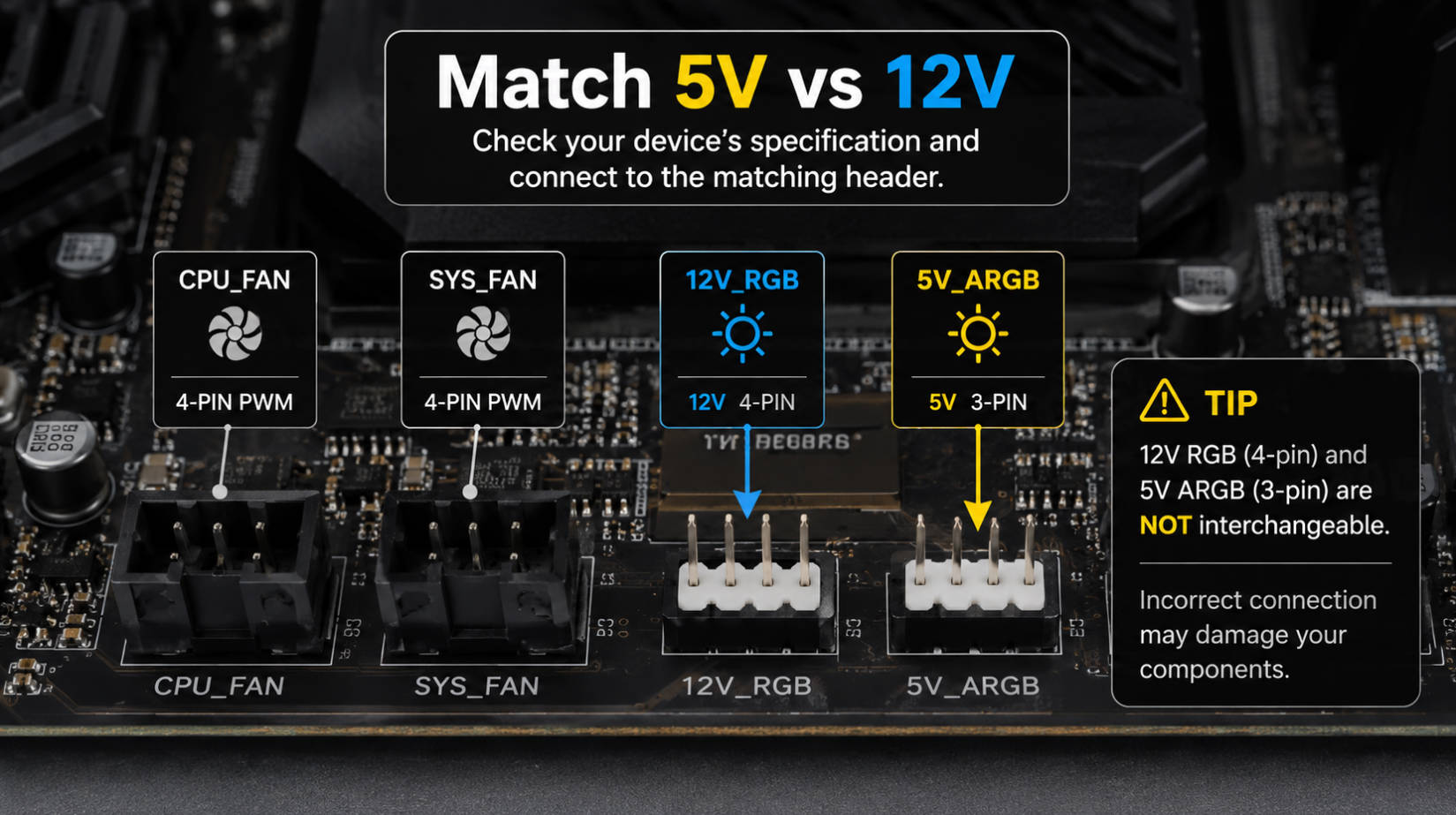
Check your motherboard manual or silkscreen labels near the PCB edges: [computercaselab]
- Fan headers
- `CPU_FAN` / `CPU_OPT` – for CPU cooler fans.
- `SYS_FAN` / `CHA_FAN` – for case fans.
- Lighting headers
- `12V_RGB` / `RGB_HEADER` / `JRGB` – standard RGB, 12V, 4‑pin. [onesdr]
- `5V_DRGB` / `ARGB` / `JRAINBOW` – addressable RGB, 5V, 3‑pin. [youtube]
Tip: Encourage users to keep the motherboard manual open (PDF or print) while building. Most RGB mistakes happen because people only look at cable shapes, not labels or voltage markings. [computercaselab]
This is the base process you'll use whether you're connecting one fan or a full RGB array. [hardwarecentric]
1. Turn off your PC and flip the power supply switch to OFF. [youtube]
2. Open the side panel and identify the fan position (front intake, top exhaust, rear exhaust). [onesdr]
> Best practice from real builds: We routinely position front fans as intake and rear/top fans as exhaust to create a clear airflow path instead of random air movement. This improves both cooling and noise performance. [hardwarecentric]
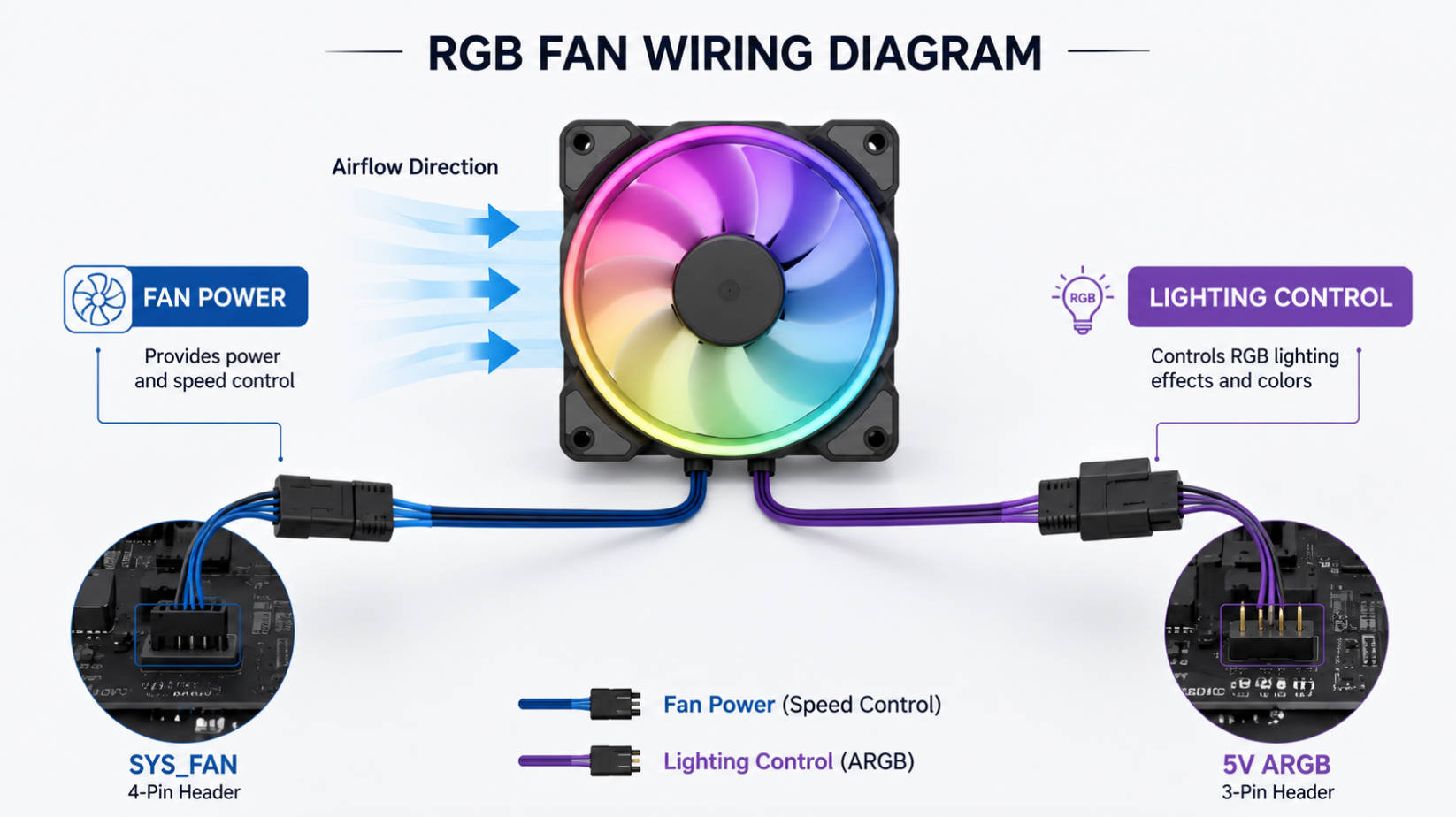
- Align the fan so that airflow arrows on the frame point the way you want air to move.
- Use the provided screws to secure the fan firmly to the case. [computercaselab]
If you're using high-performance DC fans (like those we supply to telecom and networking OEMs), pay extra attention to orientation—these systems are designed around directional airflow to keep components within safe temperature margins. [sanyodenki-cn]
- Locate an available SYS_FAN or CHA_FAN header.
- Plug the 3‑pin DC or 4‑pin PWM fan connector into the header, ensuring the plastic guide matches the header shape. [onesdr]
- If you're short on headers, use a fan hub or splitter rated for your total current draw. [youtube]
Expert tip: When customers ask us why their fans spin erratically, it's often because they plugged a fan into a RGB header instead of a fan header. Always keep power (fan) and lighting (RGB) connections mentally separated. [computercaselab]
1. Identify your fan's lighting connector:
- 4-pin, keyed with a 12V marking → standard RGB.
- 3-pin, with one blocked position or arrow marking → ARGB (5V). [youtube]
2. Match it with the correct motherboard header:
- 4-pin → `12V_RGB` / `RGB_HEADER` / `JRGB`. [onesdr]
- 3-pin → `5V_DRGB` / `ARGB` / `JRAINBOW`. [youtube]
3. Align the arrow or notch on the fan connector with the labeled pin (often `12V` or `5V`) on the motherboard header and push firmly until it seats. [youtube]
Modern PC builds rarely stop at a single fan. Here's how to connect multiple RGB fans safely and keep your cabling clean. [youtube]
If your motherboard has enough RGB/ARGB headers:
- Connect each fan's power cable to separate `SYS_FAN` or `CHA_FAN` headers. [computercaselab]
- Connect each fan's RGB cable to separate RGB/ARGB headers. [onesdr]
This gives maximum control but is rarely possible on mid‑range boards which often only have 1–2 RGB headers. [computercaselab]
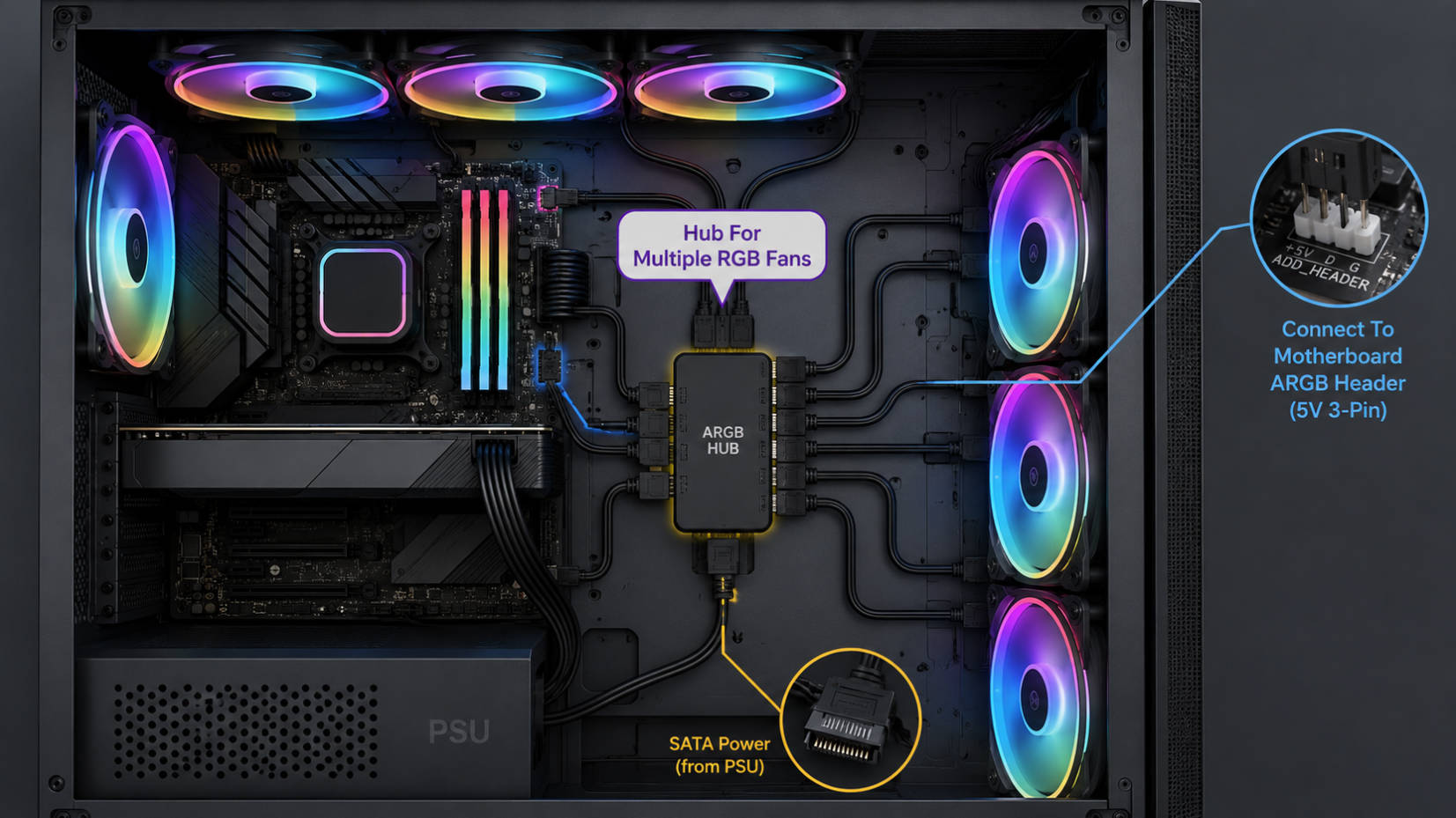
A 1‑to‑3 or 1‑to‑4 splitter lets you run multiple fans from a single header: [onesdr]
- Plug fans' RGB connectors into the splitter's multiple female ends. [computercaselab]
- Plug the splitter's single male end into one RGB or ARGB header. [onesdr]
- Connect fan power cables to multiple fan headers or a fan hub—don't drive too many high‑current fans from one header. [youtube]
Engineer note: On project builds, we calculate maximum safe load per header and use splitters only when total current stays within spec. This is particularly important for high‑performance DC fans used in base stations and industrial cabinets. [sanyodenki-cn]
For more than 3–4 fans, a dedicated hub simplifies wiring and protects the motherboard headers. [youtube]
Typical hub connections:
- SATA power from the PSU → powers all RGB channels and sometimes fan motors. [youtube]
- ARGB/RGB signal cable → one cable from hub to motherboard header. [youtube]
- Fan and RGB ports on the hub → each fan plugs in here (sometimes combined connectors, sometimes separate). [youtube]
Advantages:
- Cleaner cable routing.
- Reduced load on motherboard headers.
- Centralized control for multiple fans. [hardwarecentric]
Once the hardware is wired, software brings your lighting to life. [whoismcafee]
Common RGB control platforms:
- ASUS Aura Sync
- MSI Mystic Light
- Gigabyte RGB Fusion
- Vendor-specific controllers (e.g., Corsair iCUE, NZXT CAM) [whoismcafee]
Check that your fans and hub are compatible with your motherboard's software or with a dedicated ecosystem controller. [whoismcafee]
1. Install the correct RGB software. [whoismcafee]
2. Scan for connected devices (fans often appear under "LED strips" or "case fans"). [whoismcafee]
3. Set profiles:
- Static colors for clean, professional builds.
- Temperature‑linked colors to show system load.
- Coordinated effects (rainbow, breathing, wave) across all fans and LED strips. [hardwarecentric]
Even experienced builders get tripped up by RGB wiring. Here are the issues we see most often in support tickets—and how to prevent them. [hardwarecentric]
- Voltage mismatch (5V vs 12V)
Plugging a 5V ARGB fan into a 12V RGB header can damage LEDs. Always double-check header labels and connector markings. [fanacdc]
- RGB plugged into fan header
Lighting cable in `SYS_FAN` won't work and may cause confusion. Keep fan power and lighting cables visually separated during install. [computercaselab]
- Exceeding header current limits
Too many fans on one header can cause instability or long‑term damage. Use hubs or powered splitters for multi‑fan setups. [youtube]
- Loose or reversed connectors
Offset pins or half‑inserted plugs lead to flickering or non‑responsive LEDs. Take a second to visually inspect each connection. [youtube]
- Ignoring airflow design
Random fan placement can create hot spots. Always design intake vs exhaust intentionally. [hardwarecentric]
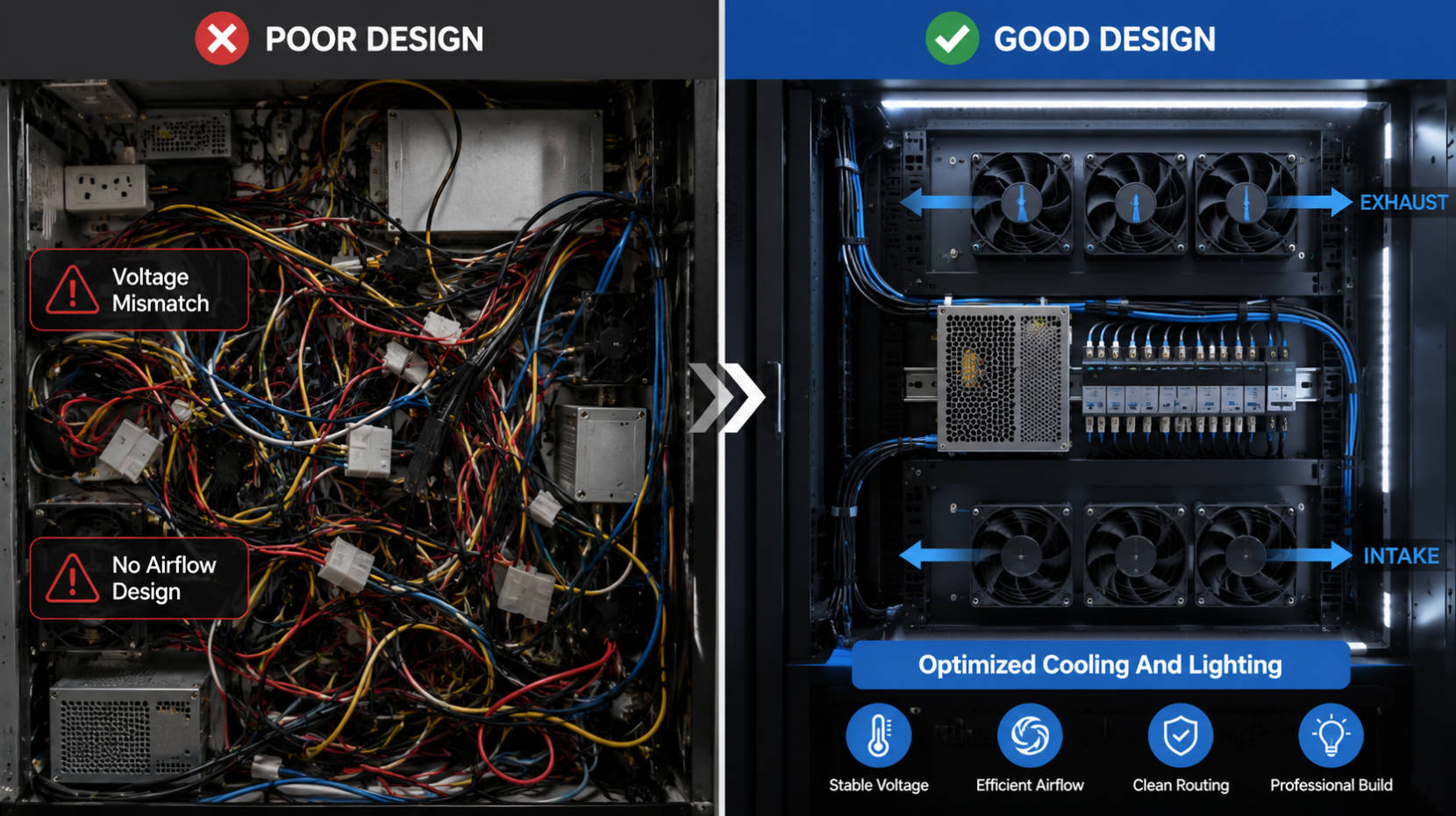
As a source factory for DC fans and thermal solutions and chief agent of a leading cooling brand, we see the impact of correct wiring far beyond aesthetics. [sanyodenki-cn]
- Stable voltage and correct headers help maintain consistent fan speed, which is critical for servers, base stations, and telecom equipment we support for customers like ZTE, Huawei, and Hytera. [sanyodenki-cn]
- Well‑planned airflow and fan control significantly reduce component temperatures, extending lifespan and reducing failure rates—especially in high‑density racks and outdoor enclosures. [sanyodenki-cn]
- For high‑reliability applications, our engineering teams design and validate complete thermal solutions, including fan selection, placement, speed curves, and controller logic, not just the fans themselves. [sanyodenki-cn]
If you're building a PC that doubles as a professional workstation or edge compute node, it's worth treating RGB fan wiring as part of a full thermal design process, not just cable management.
You can use both types on the same motherboard as long as you connect RGB fans to 12V RGB headers and ARGB fans to 5V ARGB headers or compatible hubs. They cannot share the same header because the voltage and control protocols are different. [fanacdc]
Use an external RGB controller or hub powered via SATA, and control lighting with its included remote or USB connection. In this case, your motherboard only handles fan power and speed, while the controller manages lighting. [hardwarecentric]
Check your motherboard manual for maximum current per header. As a general guideline, builders often limit 3–4 standard case fans per RGB header via a splitter or hub, but industrial or high‑performance DC fans may require stricter limits. [youtube]
Common causes include: [youtube]
- Lighting cable not connected or plugged into the wrong header.
- Voltage mismatch (5V fan into 12V header or vice versa).
- Disabled RGB in software or wrong profile selected.
Verify each connection and header label first, then check your RGB software settings. [whoismcafee]
RGB itself doesn't change airflow, but fan design and control curves do. High-quality DC fans with optimized blades and bearings deliver better cooling at lower noise—even with RGB—while poorly designed fans can look bright but move little air. Our OEM partners prioritize thermal performance first and lighting second. [sanyodenki-cn]
1. Capital Technology Co., Limited – Company overview and role as chief agent of SANYO DENKI, DC/AC fan and cooling solution manufacturer.
https://www.sanyodenki-cn.com/nl/aboutus.html [sanyodenki-cn]
2. Fanacdc – "How to Connect RGB Fans to Motherboard" (original article basis, voltage matching emphasis).
https://fanacdc.com/how-to-connect-rgb-fans-to-motherboard/ [fanacdc]
3. OneSDR – "How to Connect RGB Fans to a Motherboard: A Complete Guide" (compatibility, headers, and step-by-step guide).
https://www.onesdr.com/connect-rgb-fans-to-a-motherboard-guide/ [onesdr]
4. Computer Case Lab – "How to Connect RGB Fans to Motherboard? Step-by-Step Instructions" (header labels, splitter use, controller workflow).
https://www.computercaselab.com/how-to-connect-rgb-fans-to-motherboard/ [computercaselab]
5. Hardware Centric – "How to Connect RGB Fans to Motherboard? Step-by-Step RGB Fan Installation Guide" (multi-fan connection and troubleshooting tips).
https://hardwarecentric.com/how-to-connect-rgb-fans-to-motherboard/ [hardwarecentric]
6. The Inventar / YouTube – "How to Connect Multiple RGB Fans to Motherboard" (practical hub connection workflow).
https://www.youtube.com/watch?v=SaYzpheXfg4 [youtube]
7. How to Easily Connect Multiple RGB Fans to Your Motherboard / YouTube (3-pin 5V ARGB header identification and daisy-chaining).
https://www.youtube.com/watch?v=ZIRzDBvYulA [youtube]
8. Provoked Prawn / YouTube – "How to connect RGB fans to your motherboard" (brand-specific wiring options and hubs).
https://www.youtube.com/watch?v=BUNguZBWE5w [youtube]
9. WhoIsMcAfee – "Connecting RGB Fans to Motherboard | Complete Guide" (header types, software control).
https://whoismcafee.com/connect-rgb-fans-to-motherboard/ [whoismcafee]


