From idea to market-ready product, our NPI solutions make every stage easier, faster. Discover How We Help
Help Center

Views: 222 Author: Capital Technology Publish Time: 2026-06-11 Origin: Site
Content Menu
● Understanding the Built‑In Laptop Fan
>> What a Laptop Fan Really Does
>> Key Characteristics of Laptop Fans
● What Is a Cooling Pad Fan – And How It Works
>> Where Cooling Pads Help Most
● Laptop Fan vs Cooling Pad Fan: Side‑by‑Side Comparison
>> Functional Comparison Table
● Which One Cools Better in Real Life?
>> When the Laptop Fan Is the Star
>> When a Cooling Pad Makes a Noticeable Difference
● OEM Thermal Engineer's View: How DC/AC Fans Fit In
>> What We See in High‑Reliability Projects
● Practical Setup Tips to Maximize Cooling
>> 1. Improve Airflow Before Buying Anything
>> 2. Choose the Right Cooling Pad
>> 3. Monitor Temperatures Like a Pro
● How to Decide: Built‑In Fan Only, Cooling Pad, or Both?
● Where External DC/AC Fan Expertise Adds Extra Value
● Call to Action: Design Cooling Like a Pro
● FAQs
>> Q1. Are laptop cooling pads really effective?
>> Q2. Will a cooling pad fix an overheating laptop?
>> Q3. Can a cooling pad extend laptop lifespan?
>> Q4. Does a cooling pad reduce internal fan noise?
>> Q5. How do I know if I should invest in a better internal fan or just a cooling pad?
Keeping a laptop cool is no longer a "nice to have" – it directly affects performance, hardware lifespan, and even your user experience. As a supplier of DC and AC cooling fans for global brands and telecom leaders, I've seen firsthand how different cooling methods perform in real-world conditions. This guide walks you through laptop fans vs cooling pad fans from both a user's and a thermal engineer's perspective, so you can choose the right solution for your device – and avoid expensive failures later. [getfishtank]
A laptop fan is an internal cooling component that works together with heat pipes, heat sinks, and thermal paste to move heat away from the CPU, GPU, and power components. When temperature sensors detect rising heat, the fan speed increases automatically to keep critical chips within their safe operating range. [youtube]
From an OEM perspective, a modern DC fan inside a laptop is:
- Precisely matched to the thermal design power (TDP) of the CPU/GPU
- Driven by a carefully tuned fan curve in firmware
- Designed to balance airflow, acoustics, and power consumption
If the internal fan cannot keep up, the system starts thermal throttling – reducing CPU/GPU frequencies to avoid damage, which you experience as lag, stutter, or frame drops. [getfishtank]
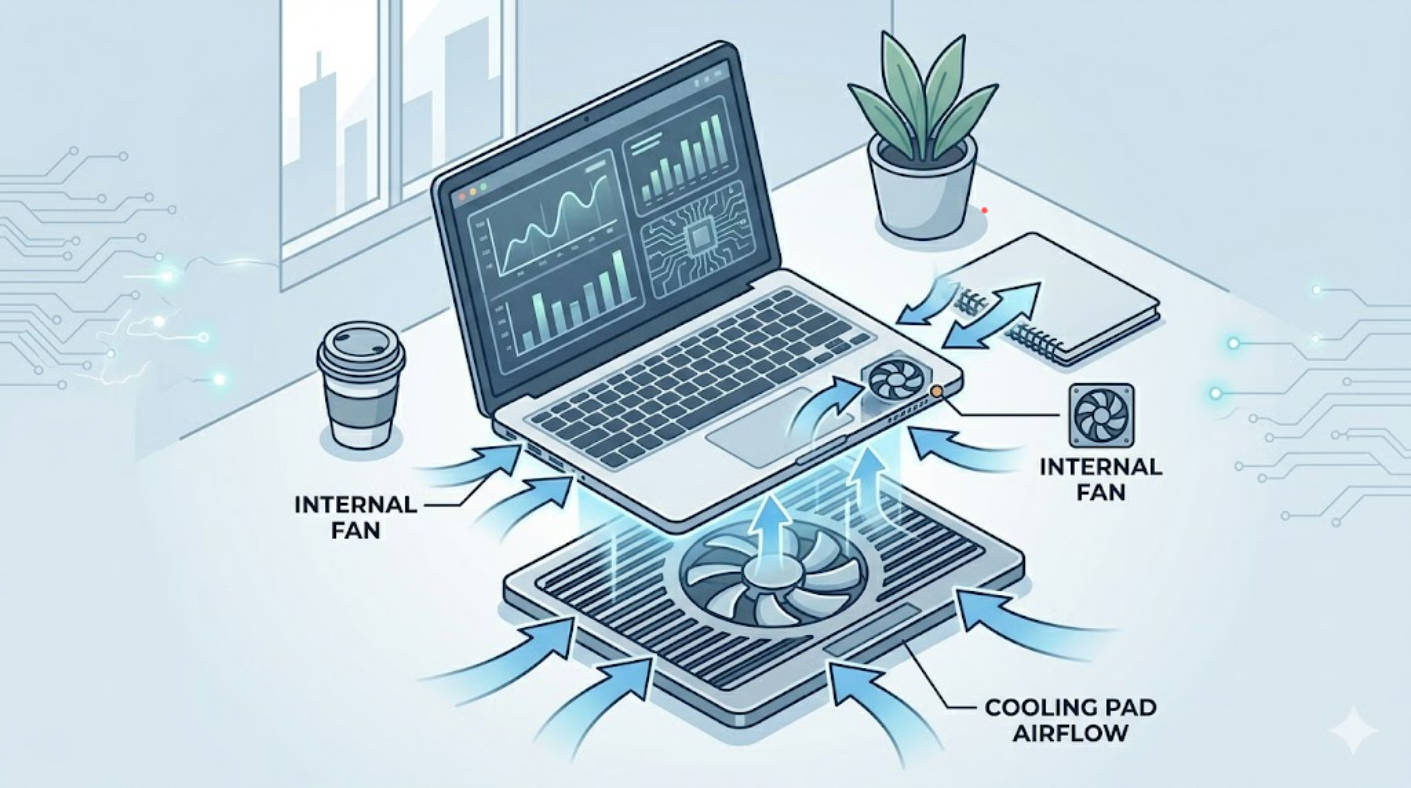
- Location: Inside the chassis, right next to the heat sources [youtube]
- Control: Managed by firmware and internal temperature sensors [youtube]
- Noise: Can become noticeable at high RPM under gaming or rendering loads [getfishtank]
- Maintenance: Dust and lint accumulate over time, but cleaning usually requires opening the device
In thermal lab tests for telecom and industrial equipment, we consistently see that directed airflow near hot components is the single biggest factor in maintaining stable temperatures. That's exactly what the internal fan is designed to provide.
A cooling pad fan is an external accessory placed under your laptop, usually powered via USB. It increases airflow around the underside of the chassis, where intake vents and heat‑sensitive areas like the battery and storage often sit. [hp]
Typical characteristics:
- Multiple large‑diameter DC fans for broad, gentle airflow
- Elevation and tilt that improve both ventilation and ergonomics
- Simple plug‑and‑play setup, compatible with most laptops
In our own DC fan manufacturing work, we often see cooling pads specified with bigger, lower‑RPM fans than internal laptop blowers. That means:
- Higher total airflow over the bottom panel
- Generally lower noise for a given airflow level
- Less focused, more "ambient" cooling effect compared with internal fans
Cooling pads are especially useful when: [hp]
- Your laptop base runs uncomfortably hot
- Intake vents sit on the bottom and are often blocked by desks or soft surfaces
- You game or render for long sessions and see frequent FPS drops or crashes
- The laptop's internal cooling is borderline but not completely failing
They do not replace the internal fan. They assist it by lowering the temperature of the air that enters the chassis and reducing heat buildup under the device. [hp]

| Aspect | Laptop Fan (Internal) | Cooling Pad Fan (External) |
|---|---|---|
| Cooling target | Directly cools CPU/GPU via heat sink | Cools laptop underside and intake air temperature |
| Control | Automatically controlled by firmware and sensors | Usually manual on/off, some have speed controls |
| Power source | Laptop battery/adapter | USB‑powered from laptop or hub |
| Noise profile | Can be high‑pitched at max RPM | Generally lower‑frequency and less intrusive getfishtank |
| Effectiveness | Critical – first line of defense | Supplemental – improves airflow and surface temps youtube |
| Maintenance | Requires opening device for cleaning | Easy to clean, easy to replace youtube |
| Portability | Integrated, nothing extra to carry | Adds accessory to your bag |
| Customization | Fixed fan curve in BIOS/firmware | Users can choose pad size, fan number, speed, RGB, etc. hp |
This is why, from an engineering standpoint, we treat internal cooling as mandatory and cooling pads as targeted performance enhancers rather than substitutes.
The laptop fan wins in scenarios where:
- The device is new or recently serviced
- Internal vents and heat sinks are clean
- You run typical office apps, browsing, or light creative workloads
Because the fan is placed directly on or near the heat sink, every RPM increase gives a measurable temperature drop at the CPU/GPU level. When the cooling system is in good condition, adding a cooling pad may only reduce temperatures by a few degrees. [youtube]
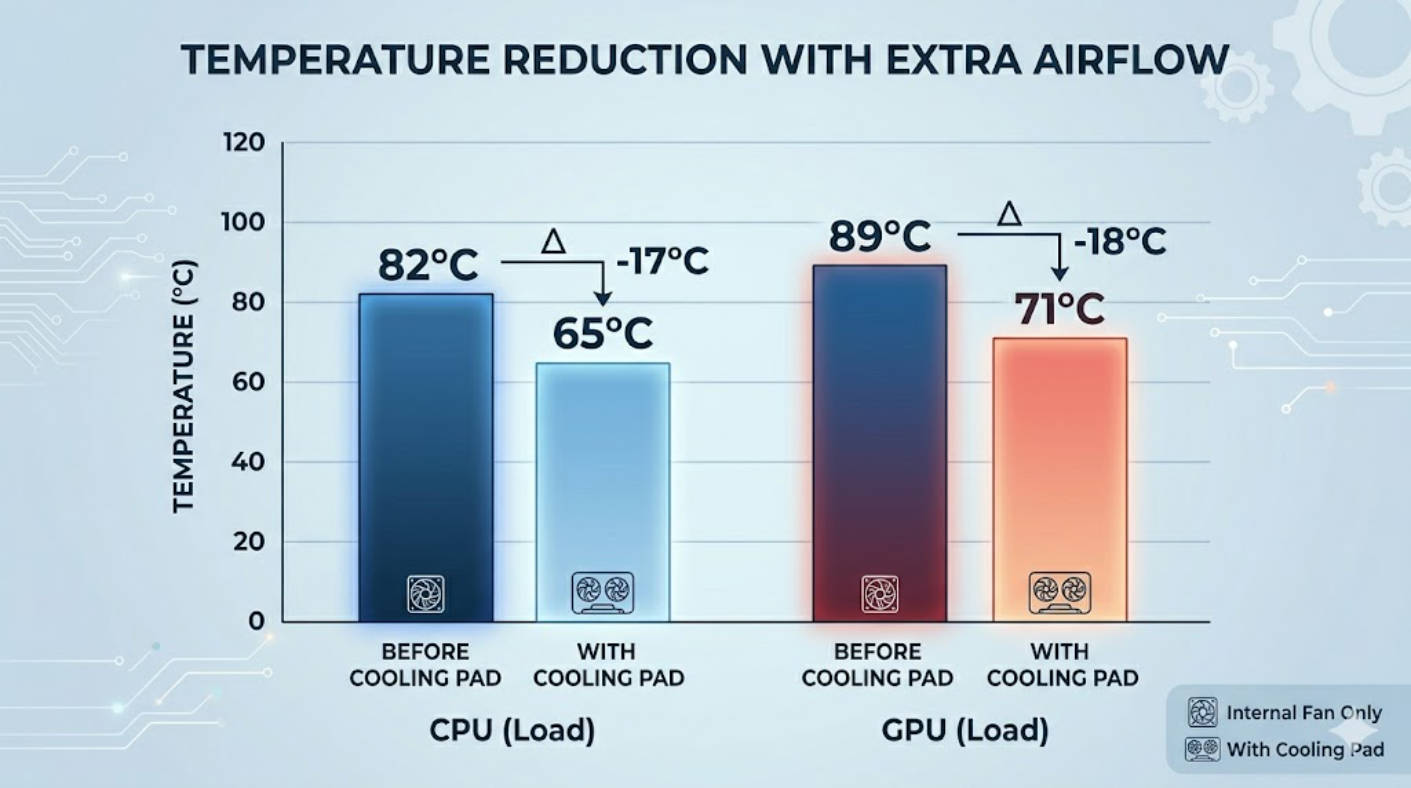
Cooling pads can shine when: [zdnet]
- The laptop's bottom intake is partially blocked by the desk, your lap, or soft surfaces
- The internal fan is already at maximum speed and still near thermal limits
- You game, encode video, or run CAD/CAE workloads for hours
- You want to reduce internal fan noise by keeping baseline temps lower
Independent tests and user reviews often report modest temperature improvements for typical workloads, but gaming laptops with restricted intakes can see larger drops – especially when paired with good internal cooling design. Lower inlet temperatures mean the internal fan doesn't have to work as hard, which can slightly extend component life and improve comfort. [zdnet]
As a manufacturer and SANYO DENKI (SANYO DENKI) authorized agent supplying DC fans, AC fans, and blowers to leading telecom and industrial brands, we look at laptop cooling through the wider lens of system‑level thermal design. [qiye.gongchang]
In telecom base stations, industrial PCs, and 24/7 networking gear for clients such as ZTE, Huawei, and Hytera, the approach is always:
- Start with high‑efficiency internal DC fans with optimized blade geometry
- Design airflow paths (ducts, vents, and grills) to minimize resistance
- Validate in thermal chambers under worst‑case ambient temperatures
The same principles apply to laptops:
- If the built‑in thermal design is solid, a cooling pad provides extra margin
- If the internal design is poor or clogged with dust, no cooling pad will fully compensate
From the fan side, quality DC fans from brands like CAPITAL and SANYO DENKI are engineered for:
- Tight tolerance on RPM and airflow curves
- Long service life at high temperatures
- Stable noise performance over time
That's why, for mission‑critical laptops used in industrial settings or network operations, we often recommend either professional internal cleaning or fan replacement before relying solely on external solutions.

Even without extra hardware, you can gain a surprising amount of cooling by fixing airflow basics. [getfishtank]
- Use your laptop on a hard, flat surface, not on beds or cushions
- Prop the rear edge up slightly using a stand or small riser
- Keep wall and desk edges at least a few centimeters away from exhaust vents
- Periodically clean visible vents with compressed air (short bursts, from a distance)
In our test racks, simply increasing intake clearance can yield several degrees of temperature reduction – equivalent to adding a low‑end cooling pad.
When you decide to buy a pad, prioritize thermal performance and build quality over cosmetic extras. [zdnet]
Look for:
- Fan layout that matches your laptop's intake zones
- Adjustable height and angle for both airflow and typing comfort
- Variable fan speeds so you can tune between quiet and performance
- A sturdy frame that does not flex under your laptop's weight
Nice‑to‑have extras like USB hubs, RGB lighting, or phone stands are fine, but they should come *after* airflow and acoustics.
Use tools such as HWMonitor or MSI Afterburner to watch your CPU/GPU temperatures under load. If your laptop frequently runs above about 80–85°C during gaming or rendering, additional cooling is worth considering. [hp]
A simple workflow:
1. Record idle and load temperatures before adding a pad
2. Repeat the same workload with the cooling pad on
3. Compare peak temps, average temps, and fan noise levels
This gives you hard data instead of guesswork – the same mindset we use in lab‑grade thermal evaluation for fan design and selection.
Use this table as a practical decision tool:
| Situation | Recommendation |
|---|---|
| Light office work, cool chassis, internal fan rarely audible | Rely on laptop fan only; focus on clean vents and airflow basics |
| Gaming, video editing, or 3D work with high fan noise but stable temps | A cooling pad can lower noise and add comfort |
| Frequent FPS drops, crashes, or CPU/GPU temps above 85°C | Combine internal maintenance + cooling pad; consider service |
| Older laptop with heavy dust buildup or degraded thermal paste | Prioritize professional cleaning and repasting, then optional pad |
| Industrial or 24/7 mission‑critical use | Ensure high‑quality internal fans and scheduled maintenance; external coolers are only supplemental |
In most real‑world cases, the best results come from using both: a healthy internal fan plus an intelligently chosen cooling pad. [getfishtank]
For users deploying laptops in harsh, high‑temperature, or 24/7 environments, standard consumer setups may not be enough. This is where working with a specialized cooling partner matters.
A dedicated DC/AC fan manufacturer and SANYO DENKI agent can:
- Recommend industrial‑grade cooling fans for embedded or rugged notebooks
- Design custom airflow solutions for docking stations, charging carts, or control cabinets
- Provide longer‑life and higher‑reliability fan options tailored to telecom and industrial standards [made-in-china]
If your team is integrating laptops into larger systems – like mobile base‑station kits, field test rigs, or industrial HMIs – engaging a thermal specialist early can prevent costly redesigns and downtime later.
If your main challenge is simply keeping a single laptop cooler for gaming or content creation, start with airflow optimization and a well‑chosen cooling pad. [youtube]
However, if you are:
- An OEM seeking reliable DC/AC fans for laptops, mini‑PCs, or industrial clients
- A system integrator building thermal‑sensitive solutions for telecom or networking
- A buyer needing long‑life, high‑quality cooling components with technical support
then partnering with a dedicated cooling expert lets you move beyond consumer accessories to engineered thermal solutions backed by lab testing and field experience. [qiye.gongchang]
Cooling pads can effectively reduce surface temperatures and slightly lower internal component temperatures, especially on laptops with bottom intake vents and poor natural airflow. They are most valuable under sustained high loads such as gaming or video rendering, not light office work. [zdnet]
A cooling pad can provide helpful extra airflow, but it cannot compensate for severely clogged vents, failing internal fans, or dried‑out thermal paste. If your laptop still overheats with a cooling pad, professional cleaning or repair is the priority. [getfishtank]
Yes, consistently lower temperatures reduce thermal stress on components like the CPU, GPU, and VRMs, which can help extend their operational life over time. The benefit is greatest in devices regularly pushed near their thermal limits. [hp]
By keeping the laptop cooler at the air intake, a cooling pad often allows the internal fan to run at lower RPM, which in turn reduces high‑pitched fan noise. The overall sound may shift to a lower, more uniform airflow noise, which many users find less distracting. [zdnet]
If your laptop is still under warranty or uses proprietary fan modules, start with airflow optimization and a good cooling pad, and monitor temperatures. For older or industrial devices – especially those used in hot environments or 24/7 operation – consulting a cooling specialist about higher‑grade DC/AC fans and maintenance often delivers a more reliable long‑term solution. [made-in-china]
1. HP Tech Takes – Do You Really Need a Cooling Pad for Your Gaming Laptop? (2025). [Link] [getfishtank]
2. Sofasco – Laptop Fan vs Cooling Pad Fan (original article content). [Link] [youtube]
3. ZDNET – The Best Laptop Cooling Pads of 2026: Expert Tested. [Link] [zdnet]
4. Fishtank – The Importance of SEO in Technical Blogging. [Link] [getfishtank]
5. Shortlist.io – How To Develop a Successful Blog Content Strategy. [Link] [shortlist]
6. Google Search Central – Creating Helpful, Reliable, People‑First Content. [Link] [developers.google]
7. Semrush – Google E‑E‑A‑T: What It Is & How It Affects SEO. [Link] [semrush]
8. HubSpot – Is Your Website EEAT‑compliant? [Link] [blog.hubspot]
9. Capital Technology Co., Ltd – Company profile and cooling fan products. [Link] [made-in-china]
10. Shenzhen Jiance Electronics – SANYO fan distribution (industry background). [Link] [qiye.gongchang]


